Trekk › Guides › Teltonika FMC920
How to connect Teltonika FMC920 to Trekk
About 10 minutes. You can set it up by SMS, without a computer.
- 4G LTE Cat 1 and 2G
- 1 digital input
- 1 analog input
- 1 output
- Internal antennas
- 170 mAh battery
What you need
- The tracker and a SIM card with mobile data
- A phone for SMS, or a Windows computer with Teltonika Configurator
- A Trekk account: 30 days free, up to 20 cars
Where to send data
- Server
tracker.trekk.io- Port
5027- Protocol
TCP
UDP is not supported. Codec 8 and Codec 8 Extended both work, so there's nothing to change.
1Connect the wires
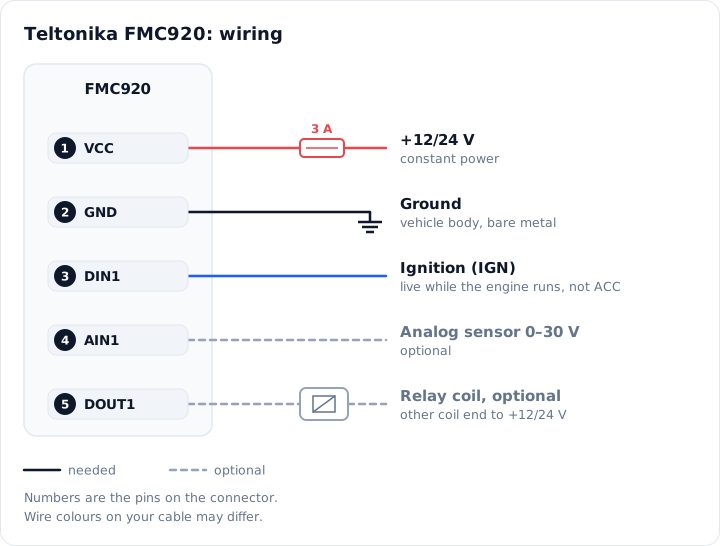
Pin table
| 1 | Power +10…30 V. Constant plus through a 3 A fuse. |
|---|---|
| 2 | Ground (−). To the body, on bare metal without paint. |
| 3 | DIN1, ignition. |
| 4 | AIN1, analog input 0–30 V, for example an analog fuel sensor. |
| 5 | DOUT1, output for a relay (open collector). |
Check the ignition wire with a multimeter: the voltage must stay while the engine runs. An ACC wire (first key position) won't do.
The antennas are inside, so don't mount the tracker under metal. GPS will be weak there.
2Insert the SIM card
- Insert the Micro-SIM with the tracker powered off. The SIM needs mobile data on and the PIN request off.
- Connect the battery to the board.
3Point the tracker at Trekk
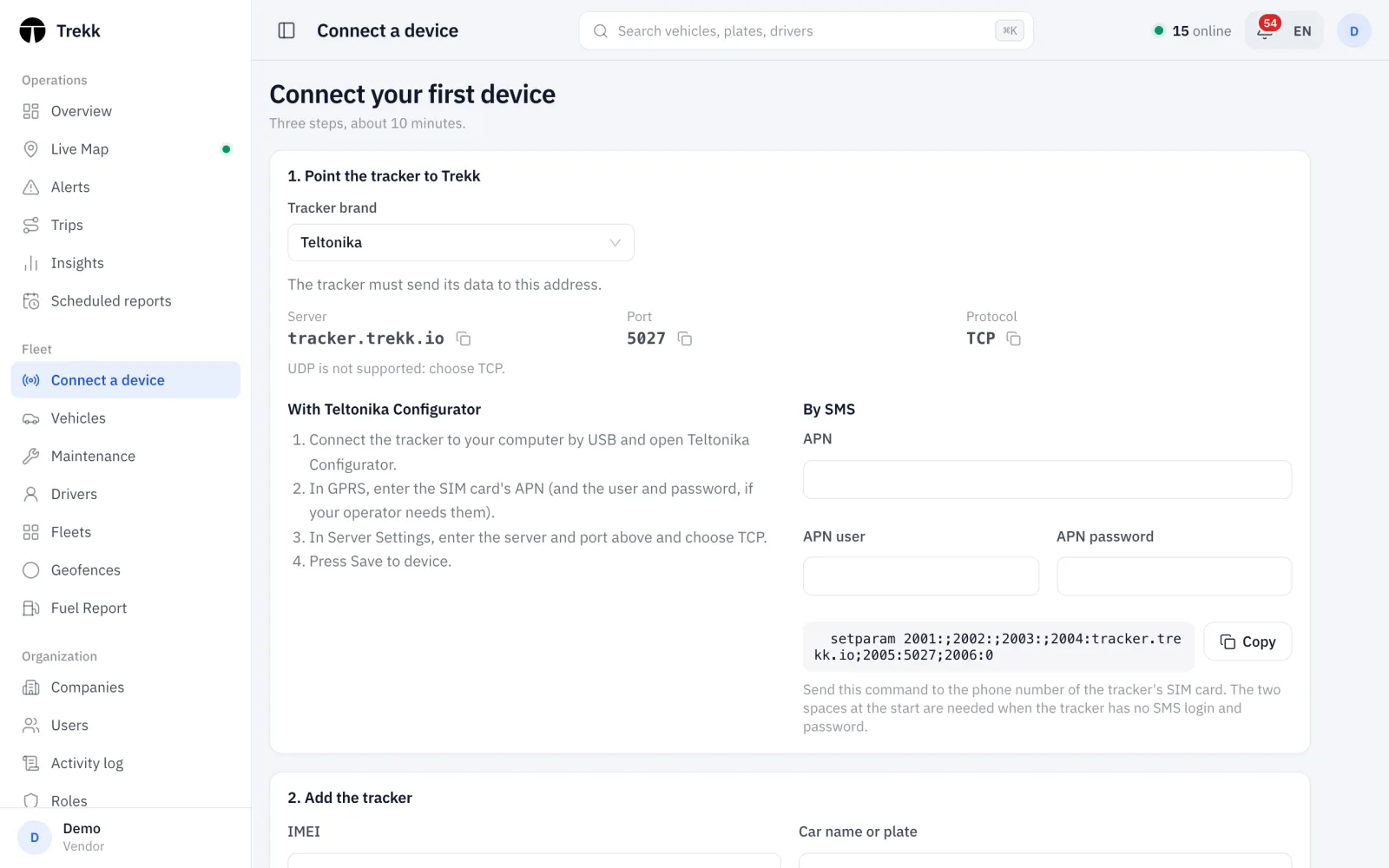
Fill in your operator's details, copy the command and send it by SMS to the tracker's SIM number.
setparam 2001:;2002:;2003:;2004:tracker.trekk.io;2005:5027;2006:0
The command starts with two spaces: that tells the tracker there's no SMS login and password.
Your operator knows the APN. It's usually on the operator's website or in a phone's mobile data settings.
- Connect the tracker to your computer by USB and open Teltonika Configurator.
- Teltonika Configurator runs on Windows only, and the Teltonika COM driver is for x64 only. On a Mac, set the tracker up by SMS.
- You can also connect without a cable, over Bluetooth. On the FMC920 it's on from the factory, and the password is 5555.
- In GPRS, enter the SIM card's APN (and the user and password, if your operator needs them).
- In Server Settings on the same page: server
tracker.trekk.io, port5027, protocol TCP. - In System, under Ignition Source, choose the ignition input (more below, in "Ignition").
- Press Save to device.
4Add the tracker in Trekk
In the Trekk dashboard, open "Connect a device" and enter the IMEI (15 digits, on the tracker label and box) and the car name or plate. When the tracker sends data, the status changes to "Connected".
5Check the connection
If the car hasn't shown up within a few minutes, send the tracker the SMS getstatus with two spaces before the word. Paste the reply here and we'll show you what's wrong.
Once the car is connected, open it in Trekk on the Telemetry tab. You'll see the ignition, power voltage, number of satellites and signal level there.
What the lights mean
About the FMC920
The FMC920 works on 4G (LTE Cat 1) and switches to 2G where there's no 4G. The GPS and mobile antennas are inside the case, and a 170 mAh backup battery keeps it running for a while after the power is cut. It has one digital input, one analog input and one output. Installers usually put it in cars and vans where the position, trips and ignition are all that's needed.
Ignition
Trekk splits the route into trips and stops by the ignition. In Configurator, open System and set Ignition Source to DIN 1 if the ignition is on pin 3. Without an ignition wire, choose Power Voltage (the voltage is higher while the engine runs) or Accelerometer (by movement). Trips are more accurate with the wire.
Common questions
Is UDP supported?
No, only TCP. Choose TCP in the server settings.
Do I need to switch Codec 8 to Codec 8 Extended?
No. Trekk accepts both.
Is data lost when there is no connection?
No. The tracker keeps records in its memory and sends them when the connection is back.
I have a Mac and Configurator won't run.
Configurator runs on Windows only. Set the tracker up by SMS: everything Trekk needs takes one command.
The tracker is online, but the car isn't in Trekk.
Check the IMEI: send getimeiccid with two spaces at the start and compare it with the car's IMEI in Trekk. Trekk doesn't accept trackers that aren't added to a car.
Connect your first car for free
30 days, up to 20 cars. If something doesn't work, write to us and we'll help.